
No matches
Platform Guide
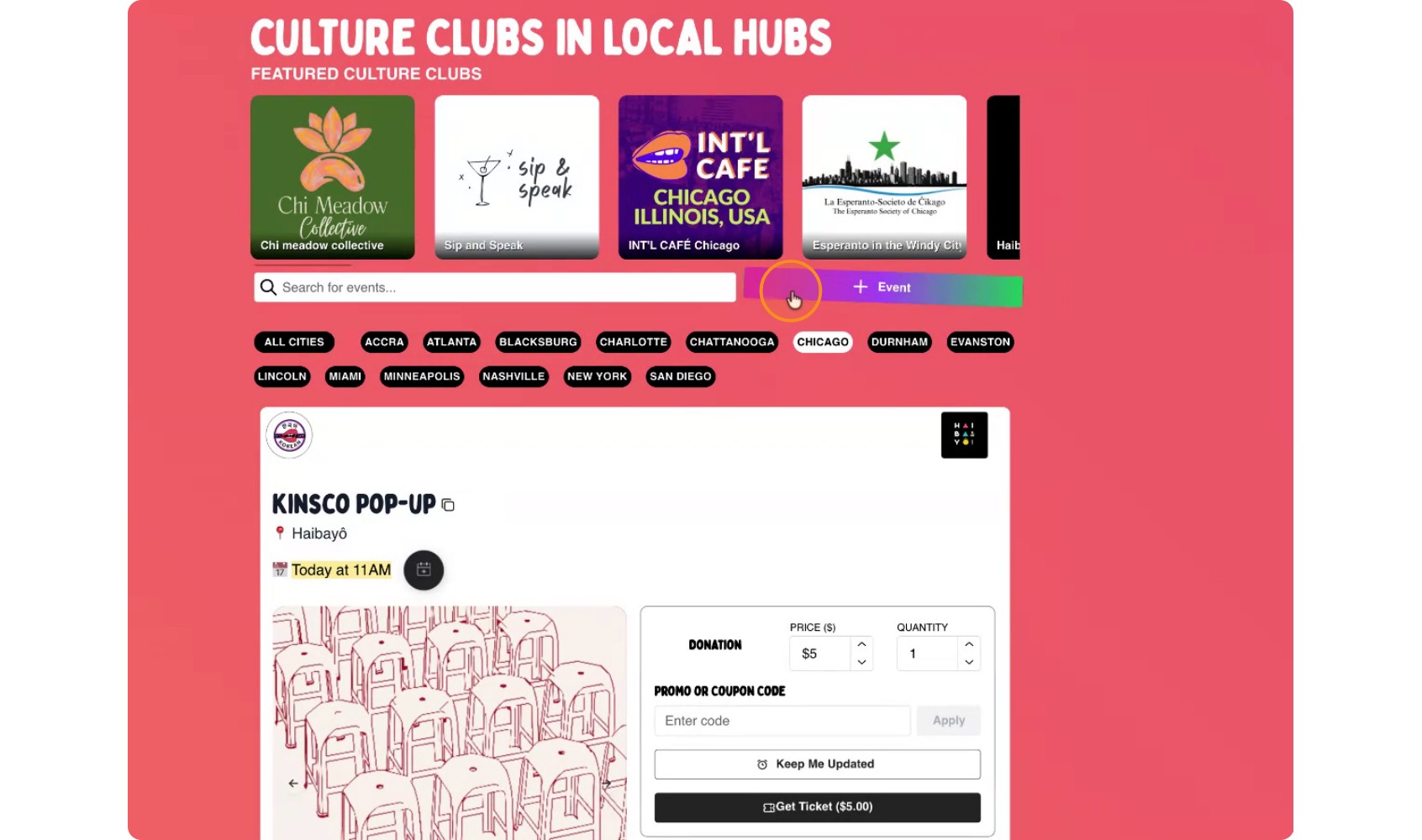
You can start creating a new event from either of the event creation entry points in the interface.
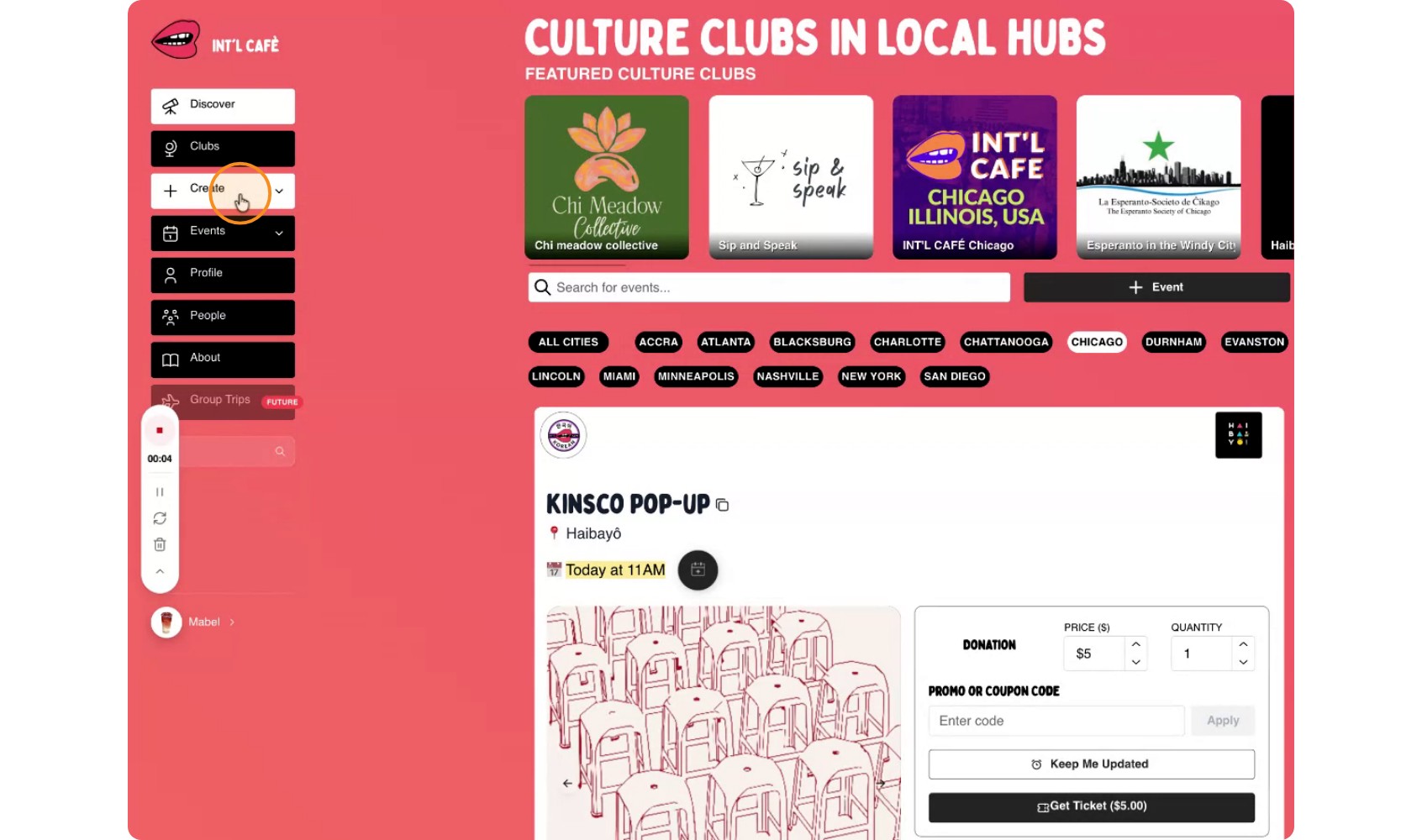
Click Create Event in the main area, or use the + Event button if that’s more convenient.
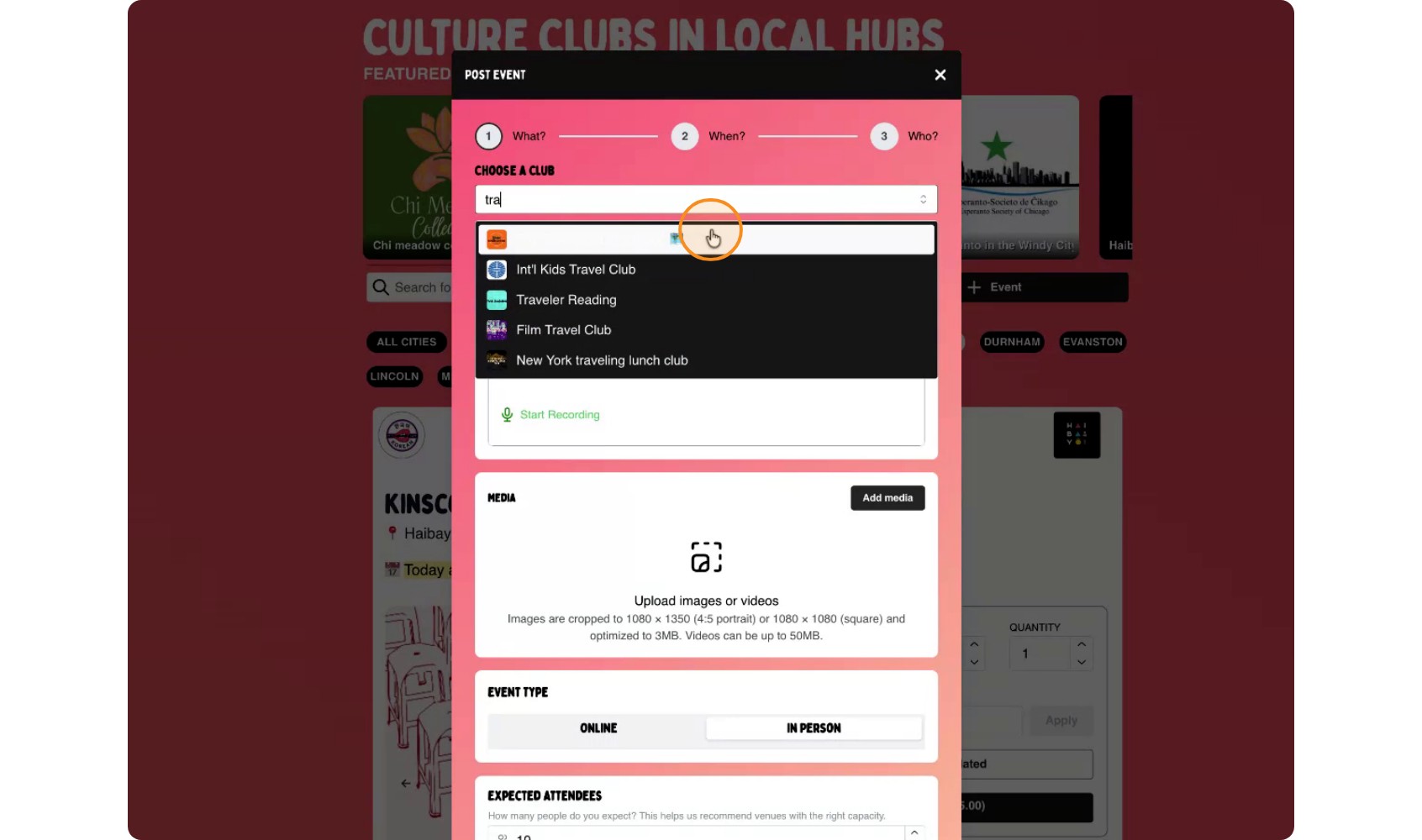
Select which club this event belongs to. This can be any club you are a member of or a club that you organize.
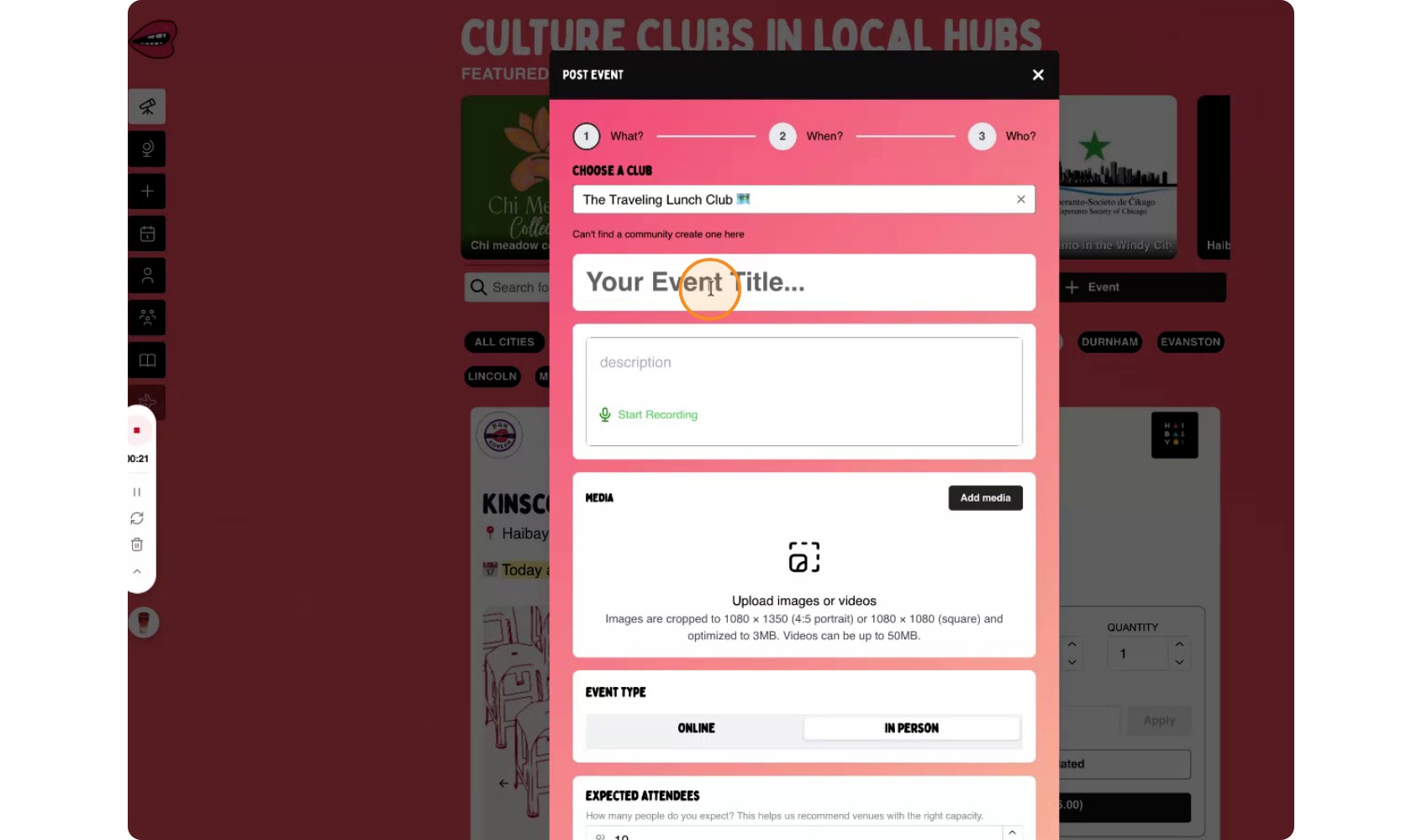
Add a clear and descriptive title and description for your event.
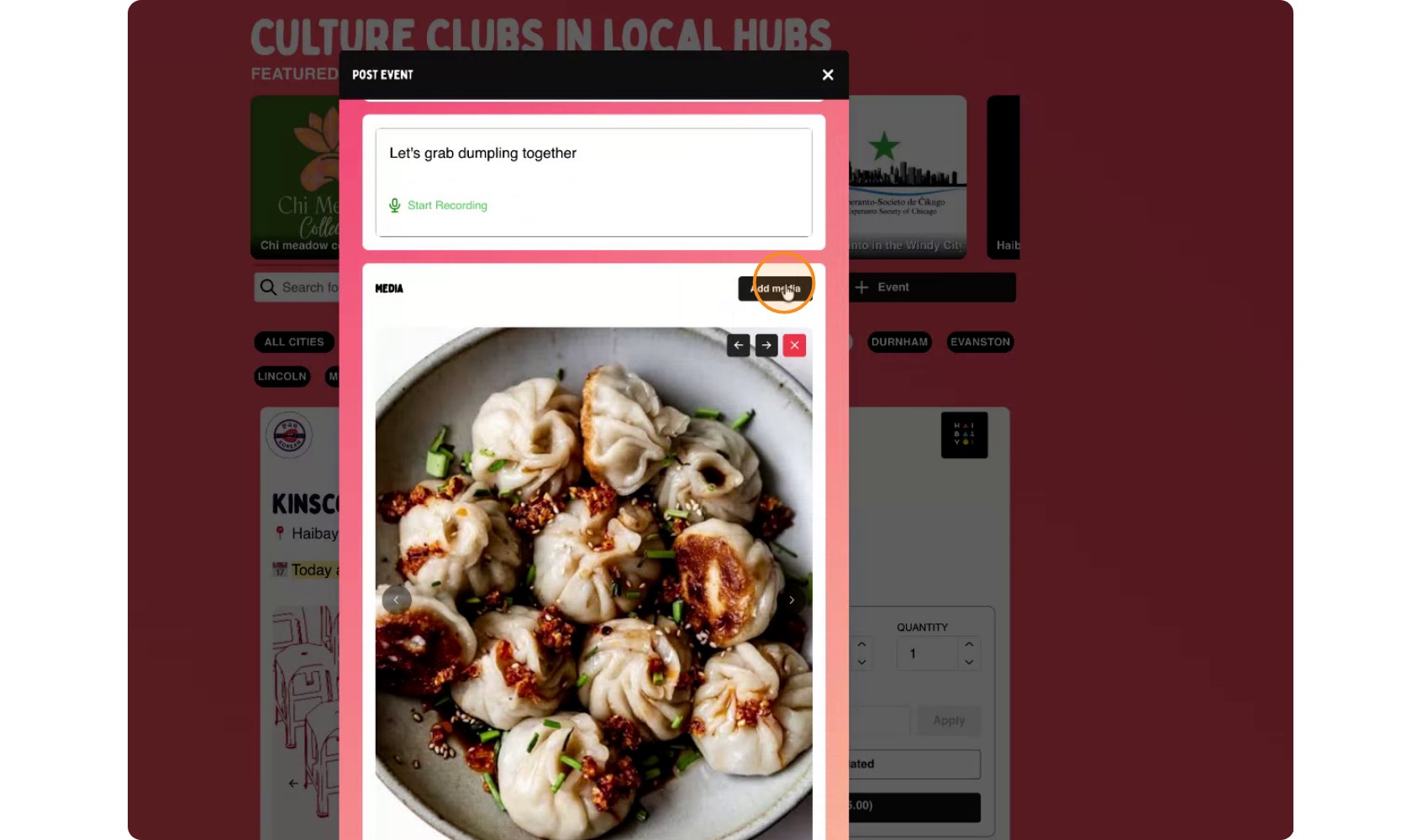
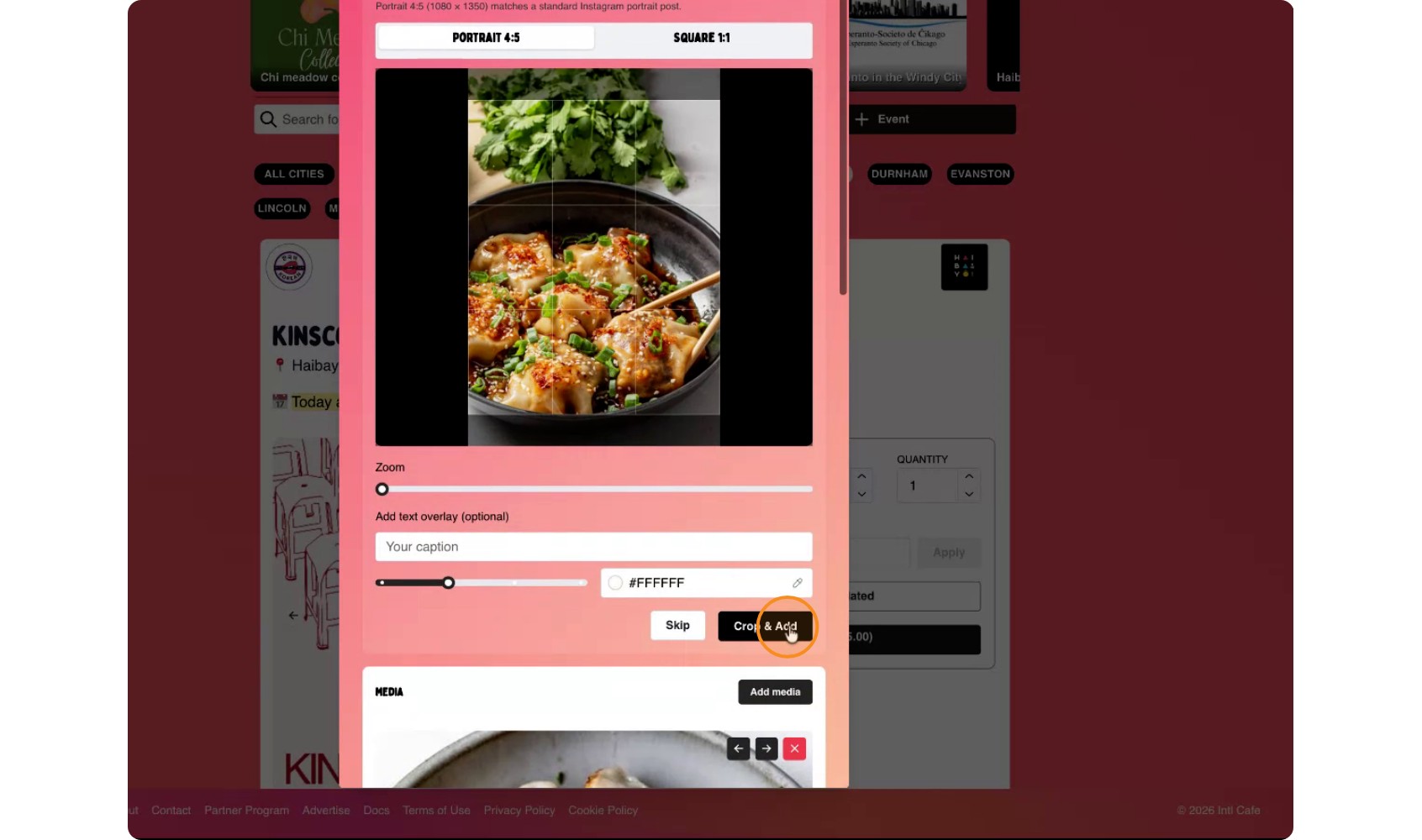
Next add an image, multiple images (carousel), or combination of images and videos (carousel) for your event. Note: The images and videos are in Instagram-sizes.
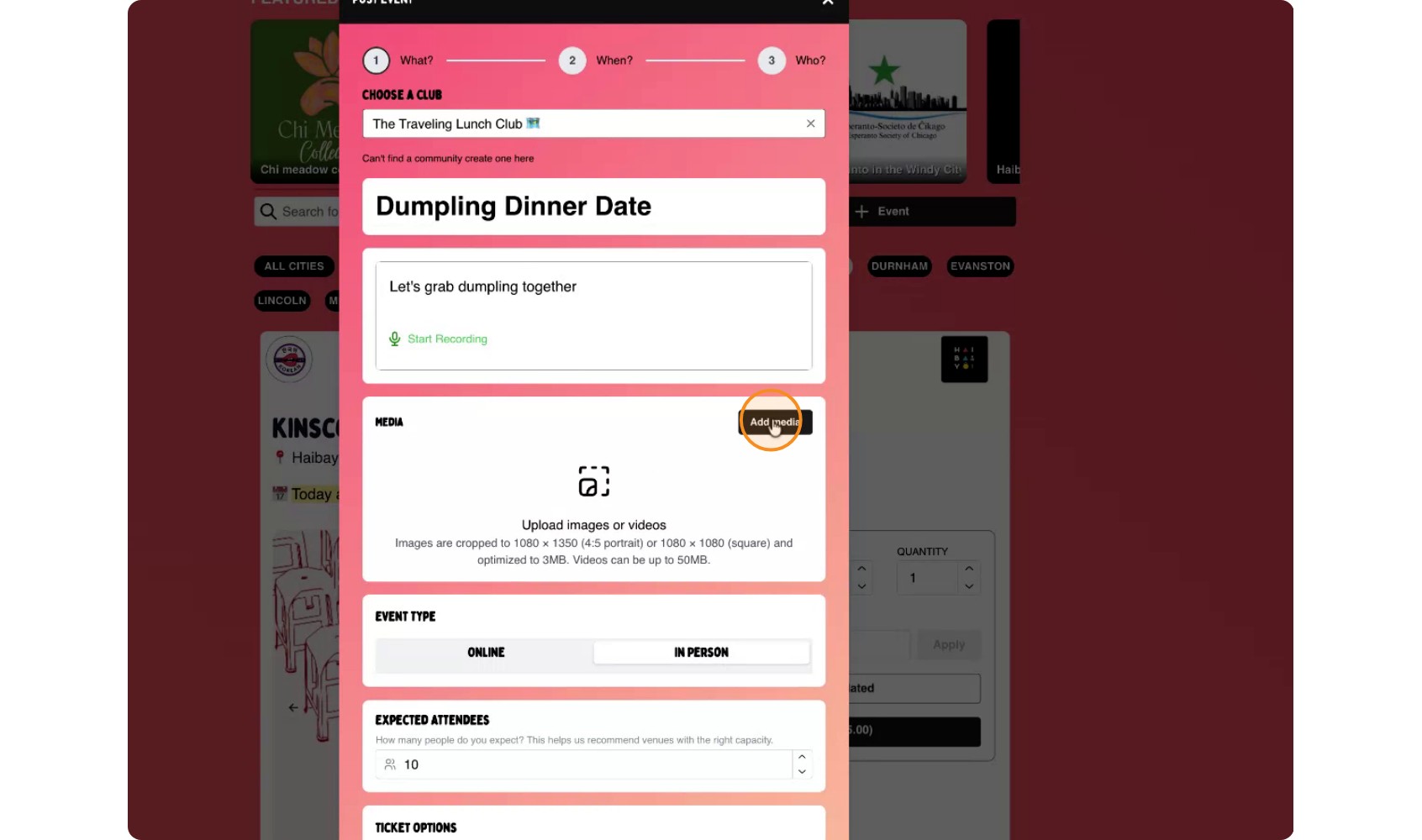
If you want multiple images in a carousel format, you can select "Add media" again and select another image.
Set the expected guests for your event.
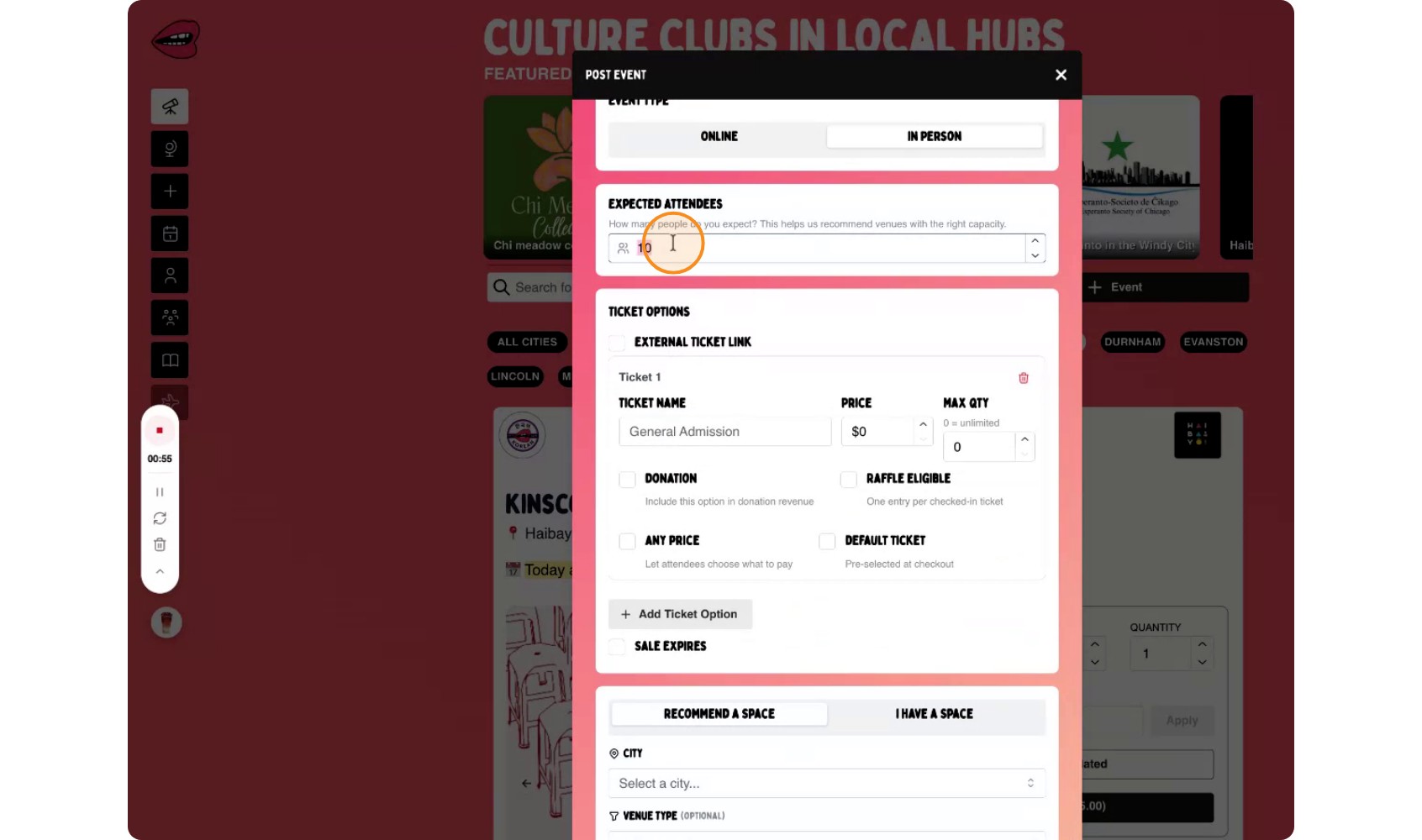
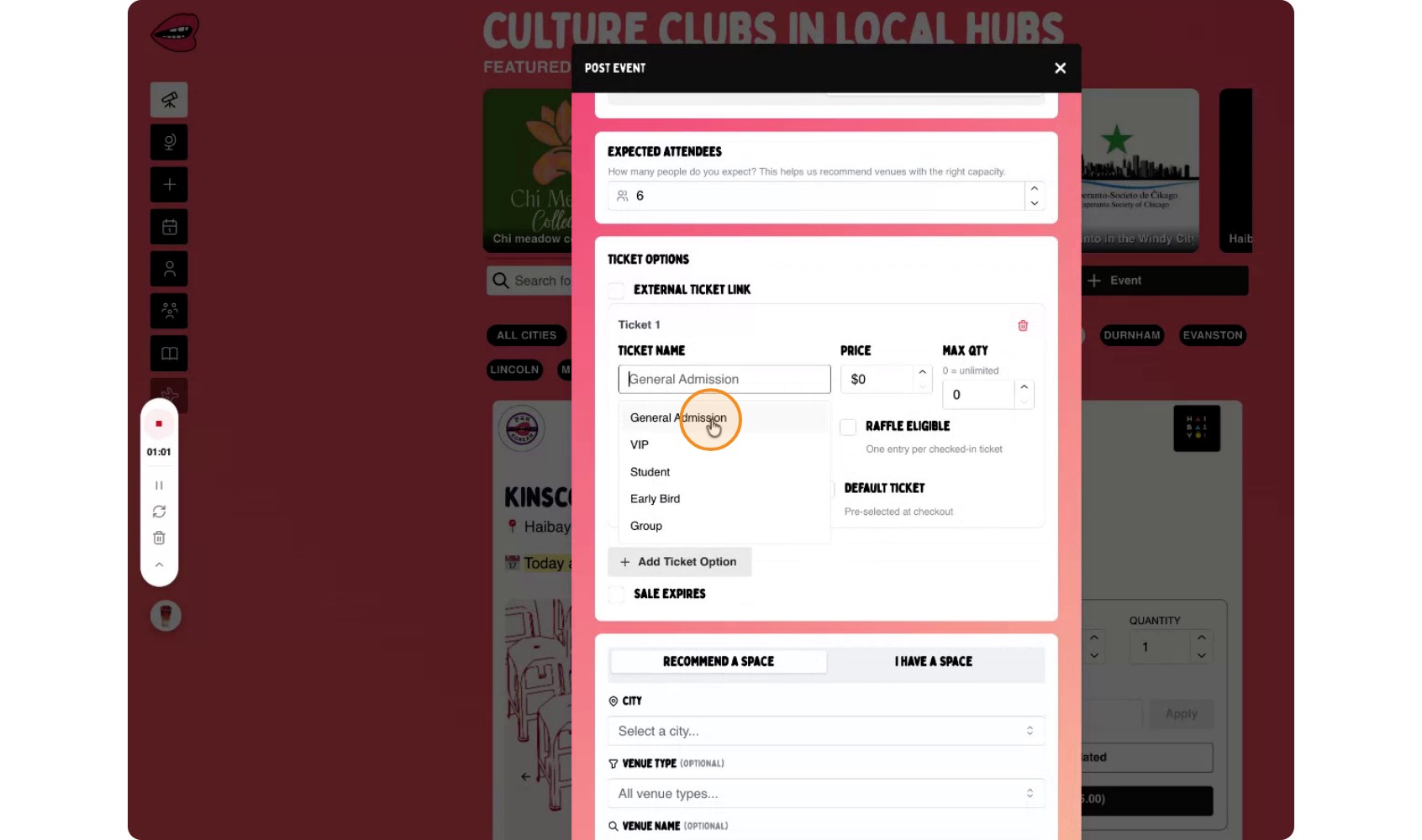
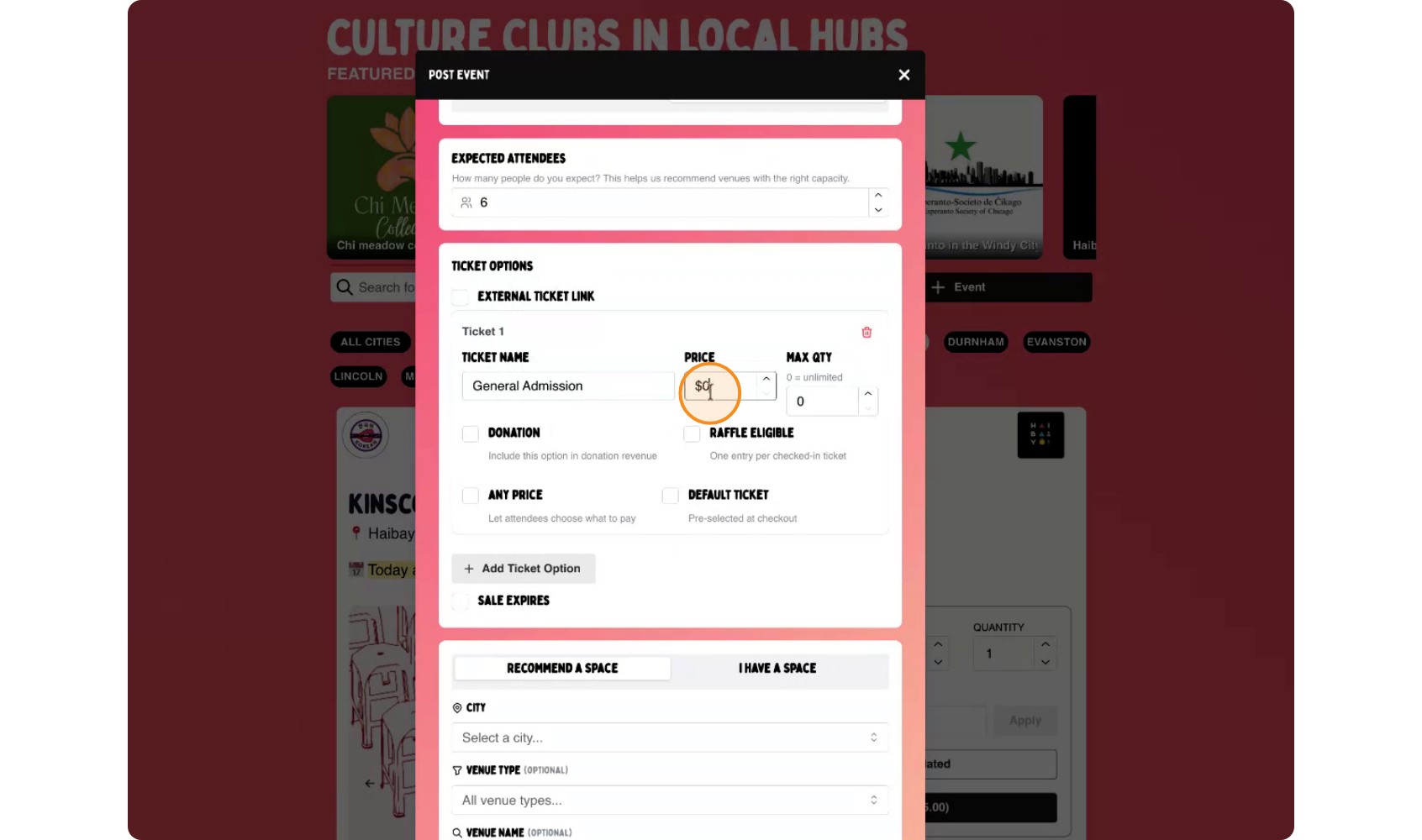
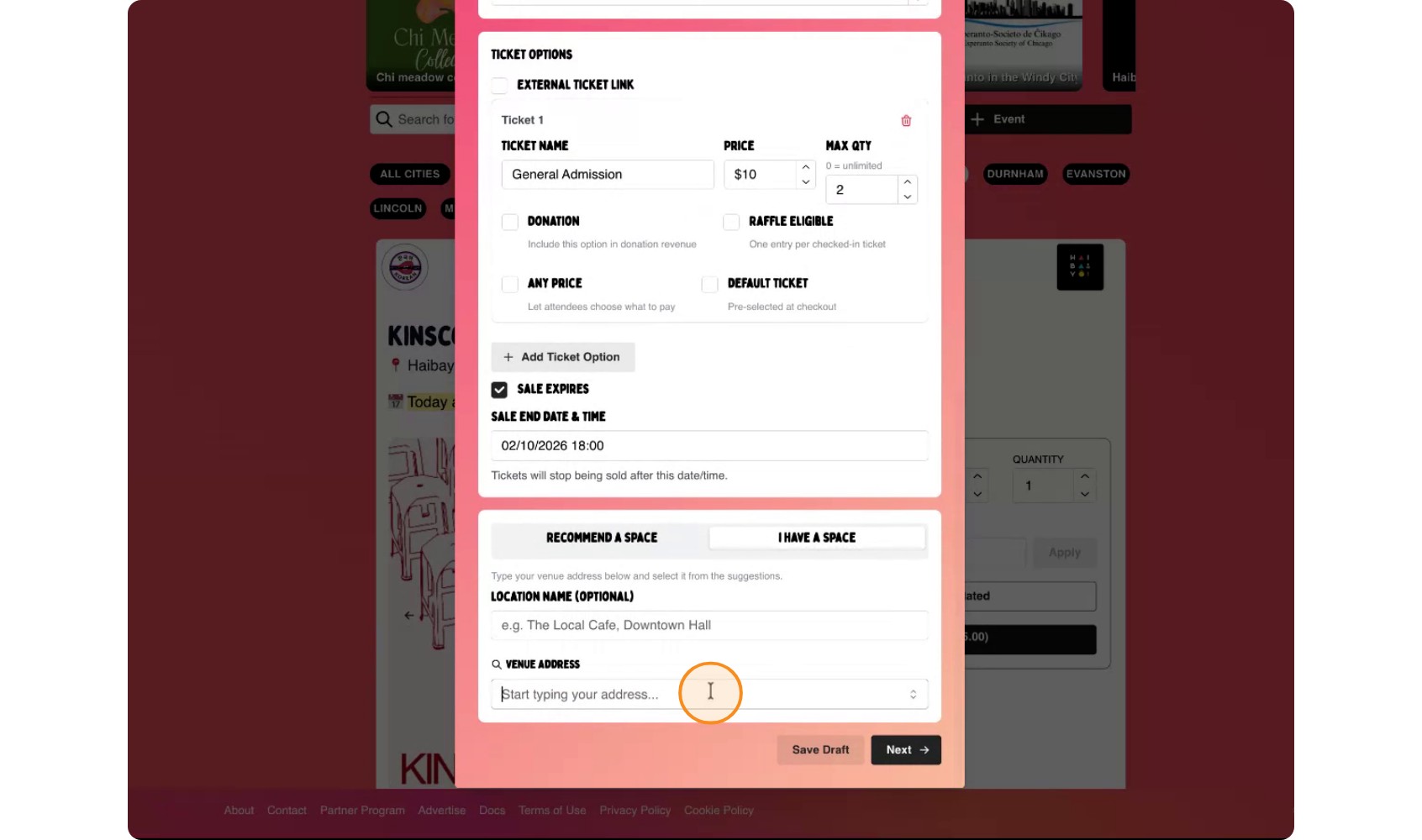
Add a ticket option for the event, you can either select from the drop down list or choose your own name for the ticket option. Then choose an amount for the ticket and select if there's a max quantity for that ticket.
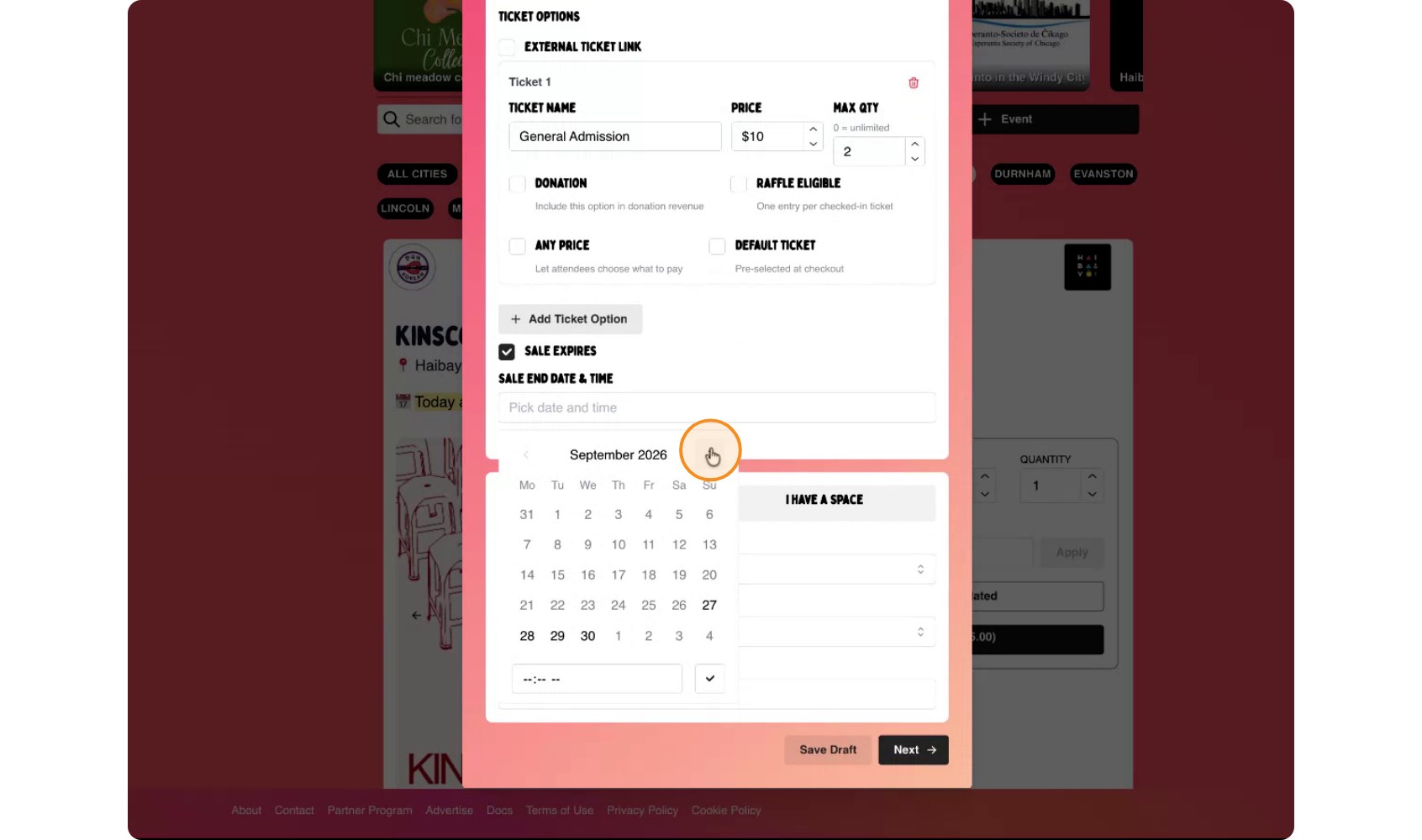
Add a ticket sales expiration date, which is when ticket sales will close. This ensures ticket sales stop before your reservation cutoff.
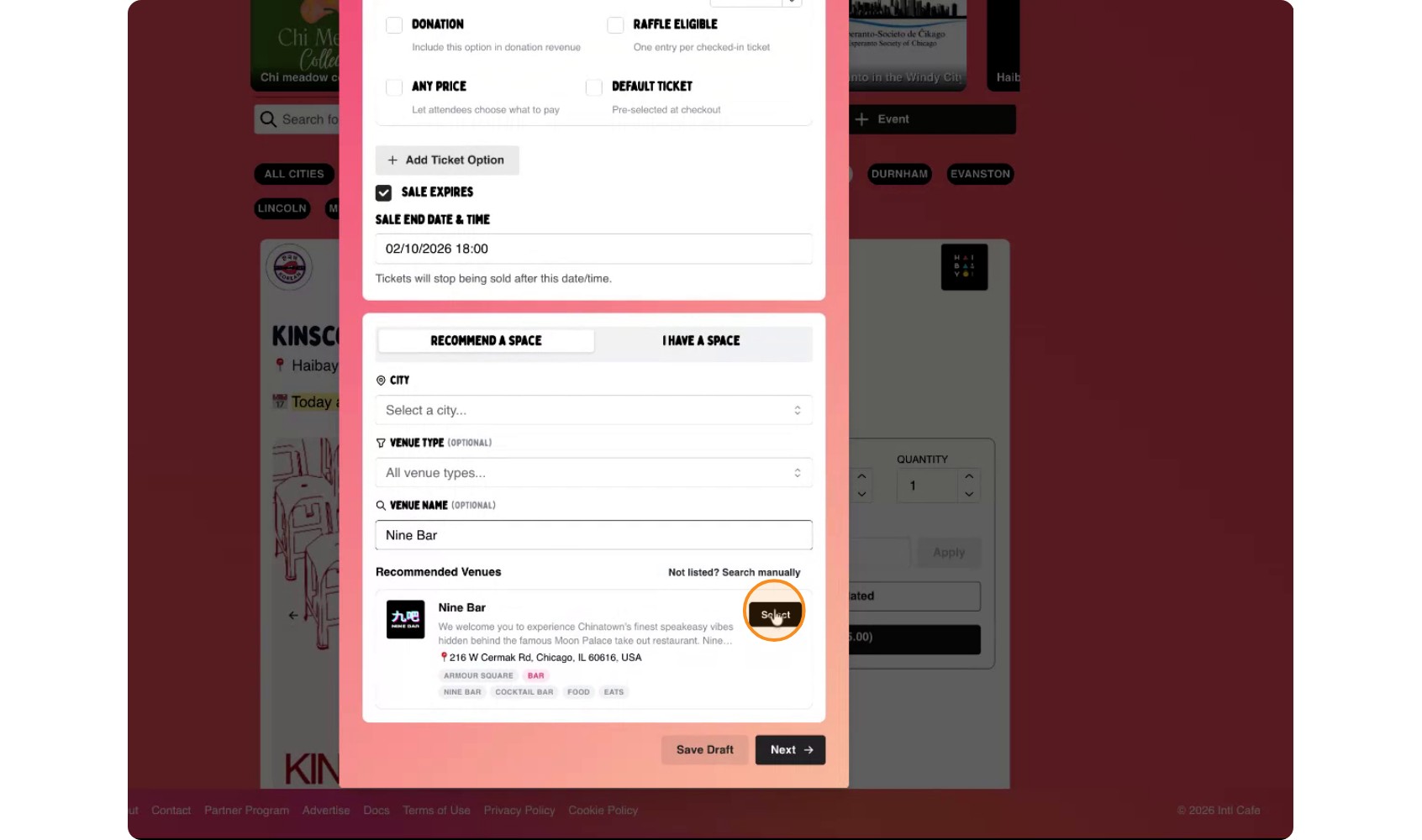
You can select from the list of our partner venues by selecting "Recommend Space". Selecting one of these may provide additional perks for your event if the venue approves your event.
Alternatively, you can select your own space by selecting "I Have A Space" and type in the name of the venue (for example, “Din Tai Fung”).
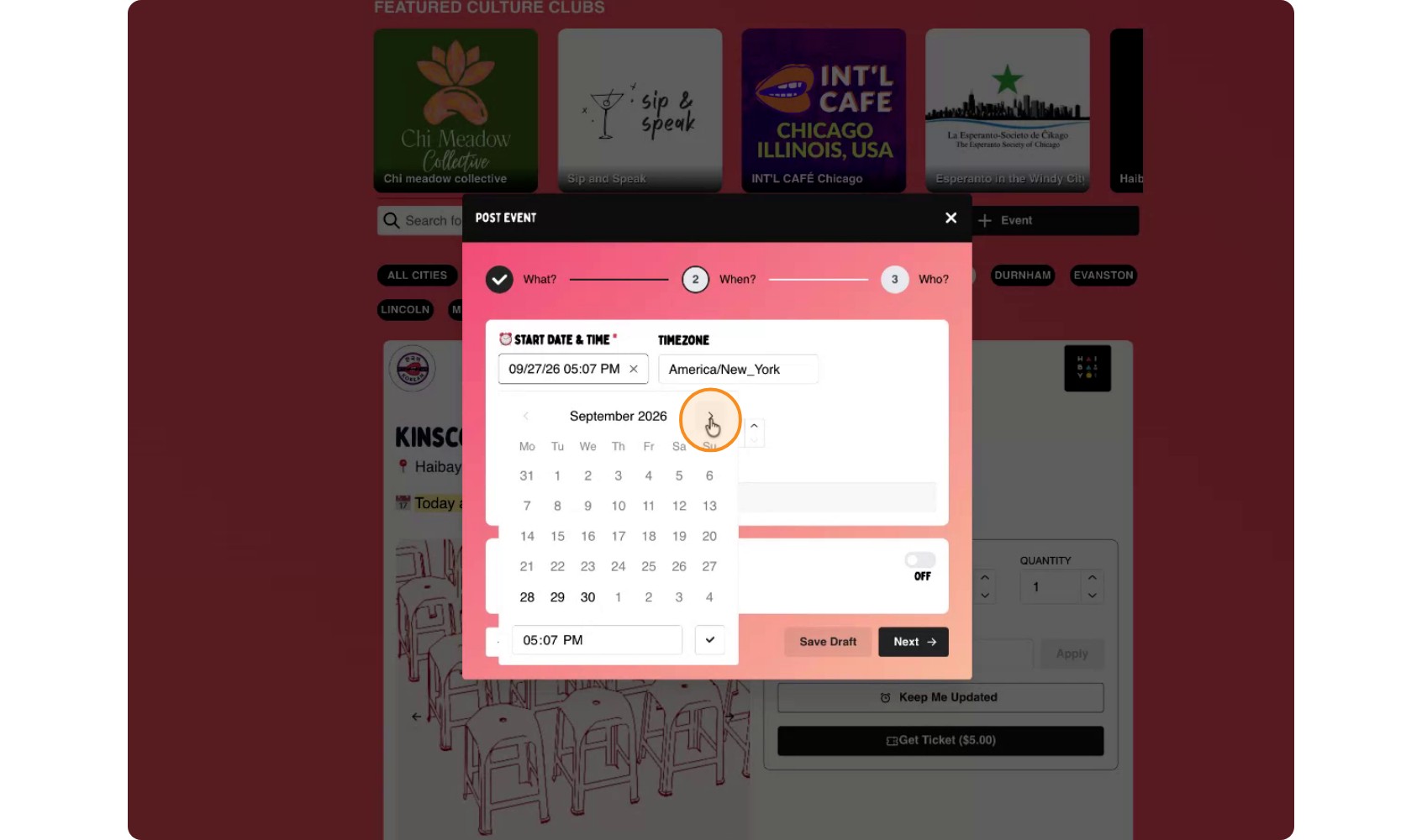
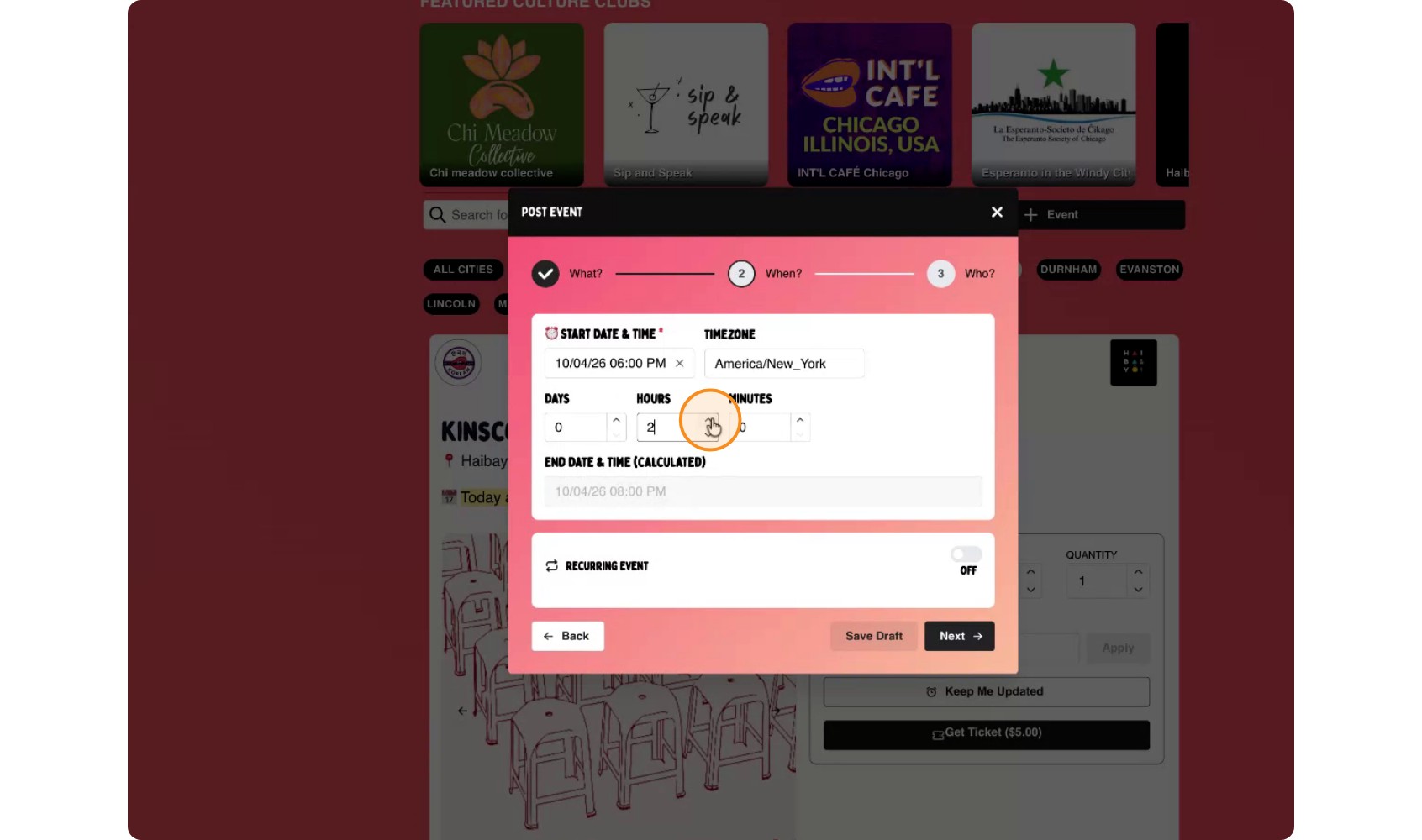
Specify the date, start time, and duration of your event.
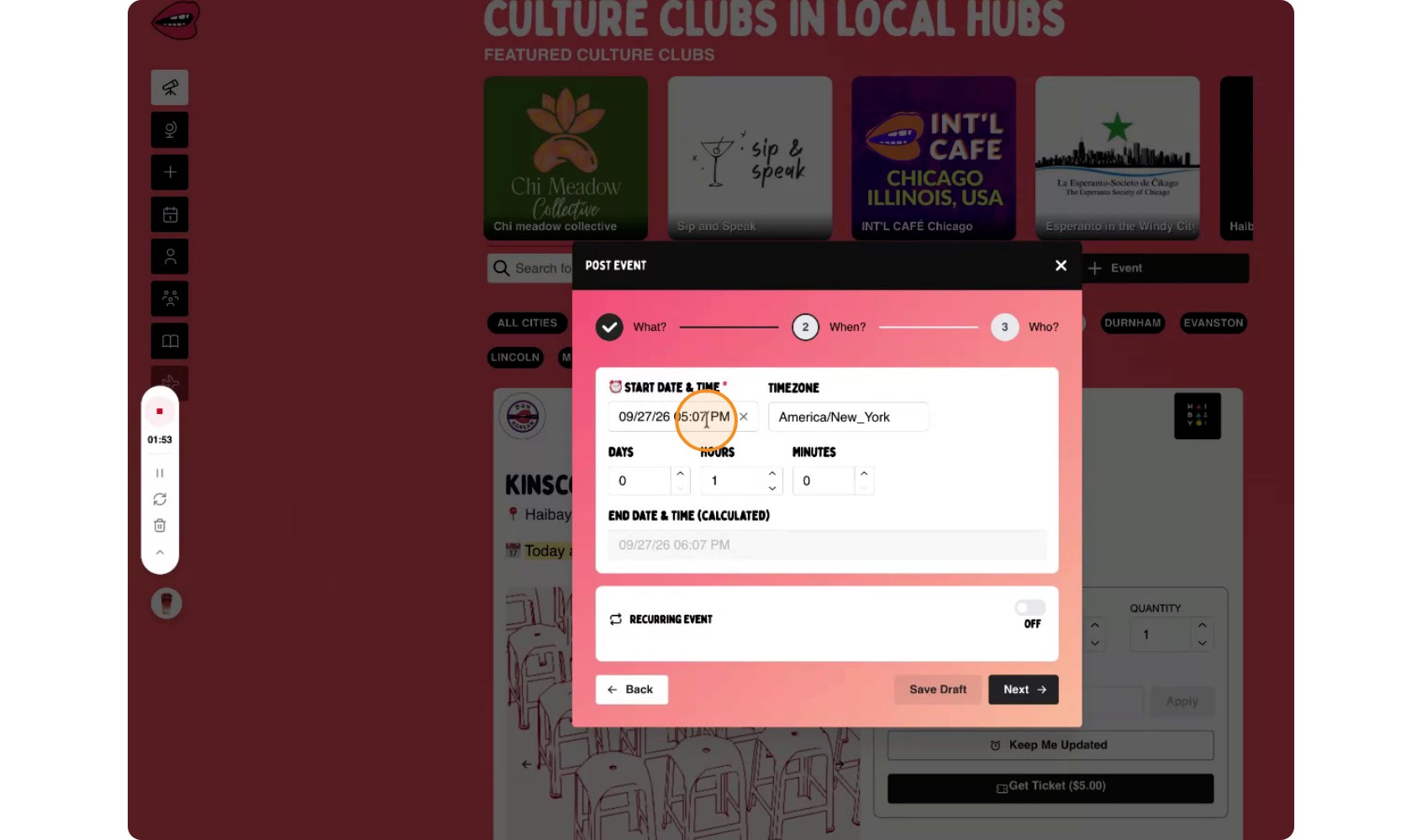
Choose the event date (e.g., the 4th), set the start time (e.g., 6 PM), and define how long it will last (e.g., 3 hours).
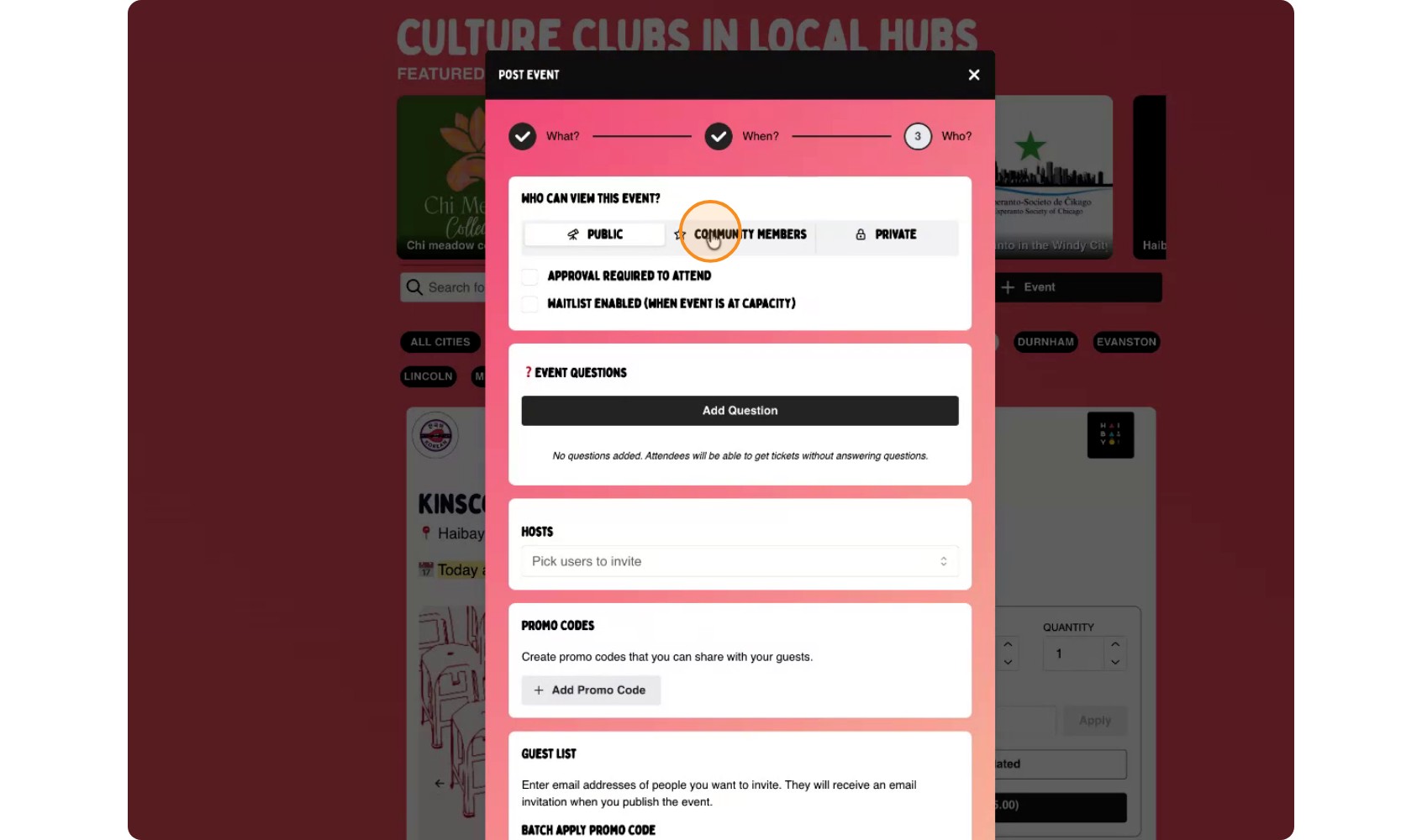
Choose the visibility of your event. For example, you can restrict it so the event is only visible to community members. This indicate that this event is only viewed on the community page and not the main page.
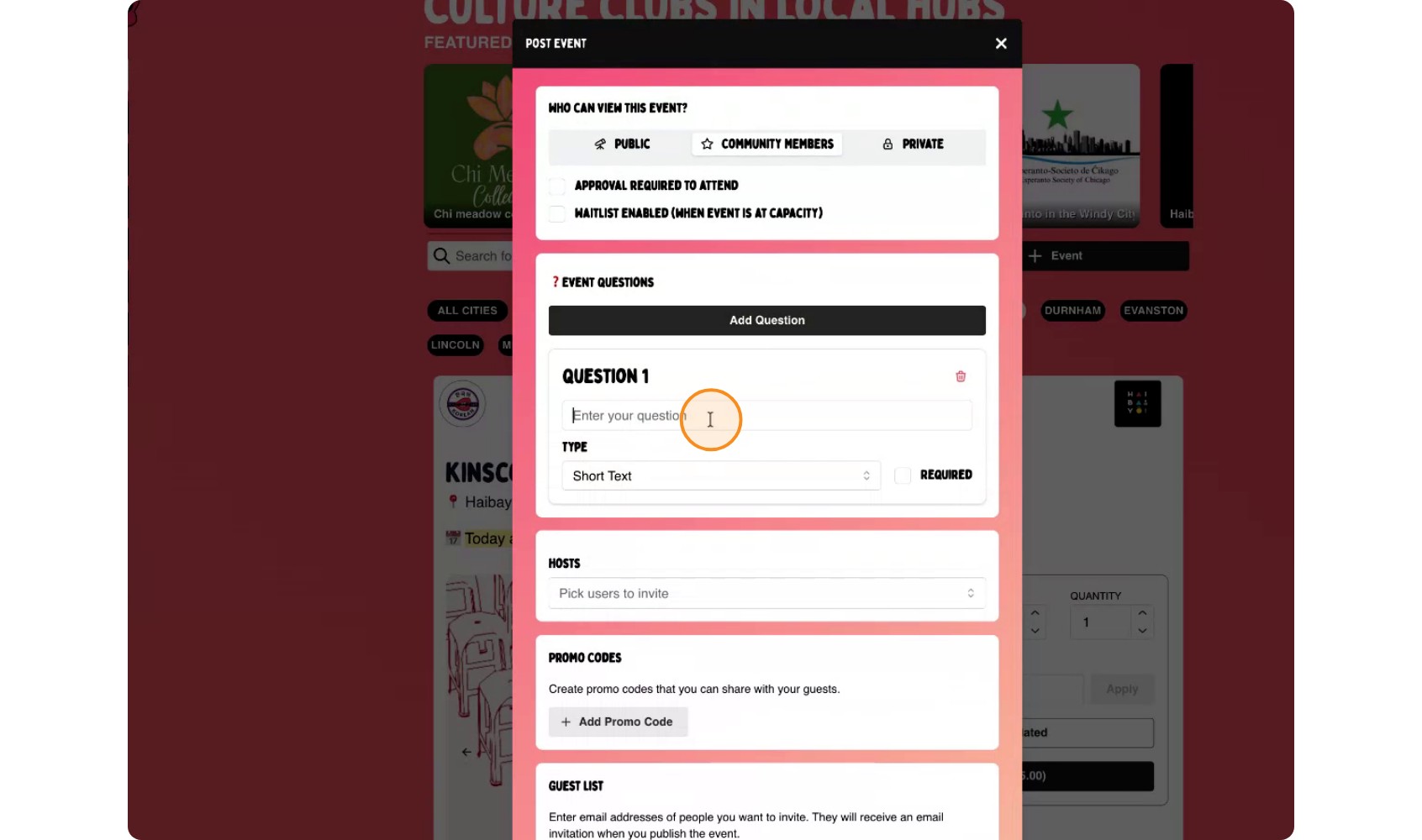
Add any questions you want attendees to answer when they RSVP—for example, “What are your allergies?” which is especially useful for food-related events. You can configure whether this question is optional or required; here, it is set as optional.
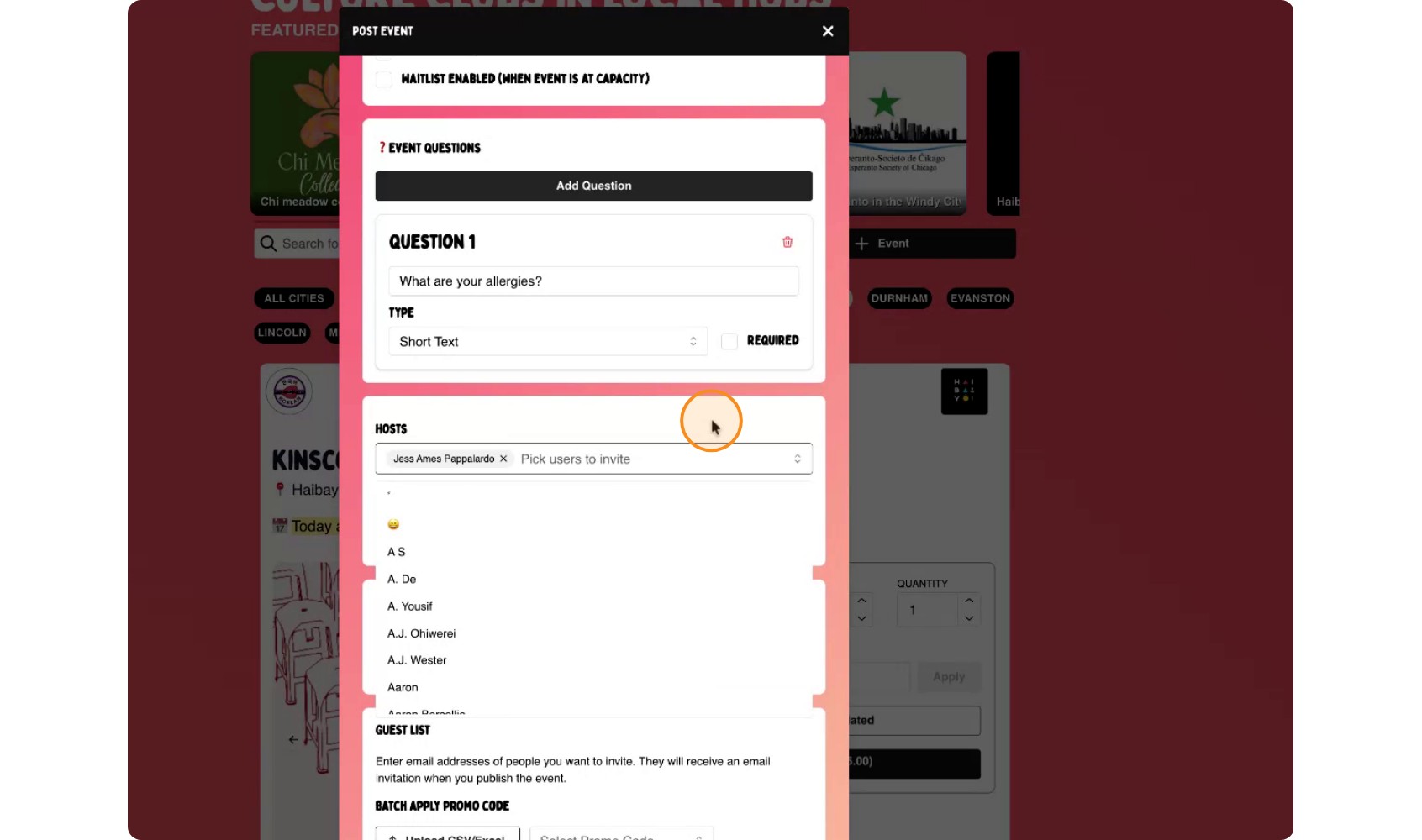
You can host the event by yourself or you can add a friend to co-host with.
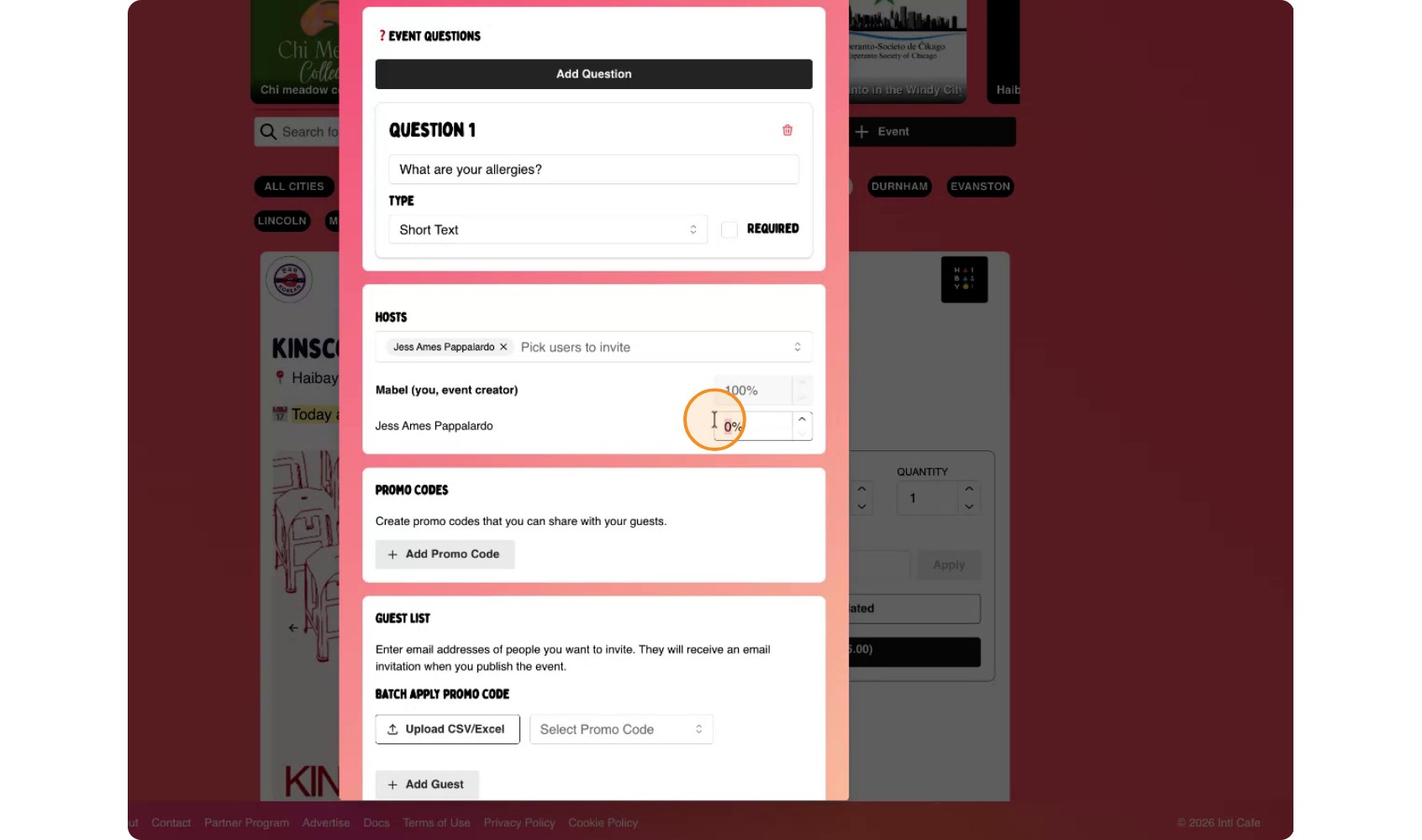
By default, you receive 100% of ticket revenue but you can change the distribution of ticket revenue with your co-host(s) (for example, set it to a 50/50 share between you and Jess). If you want to share ticket sales with the host, adjust the revenue split—for example, set it to a 50/50 share between you and Jess.
Invite friends or community members by entering their email addresses or upload an entire spreadsheet with people you would like like to invite via email.
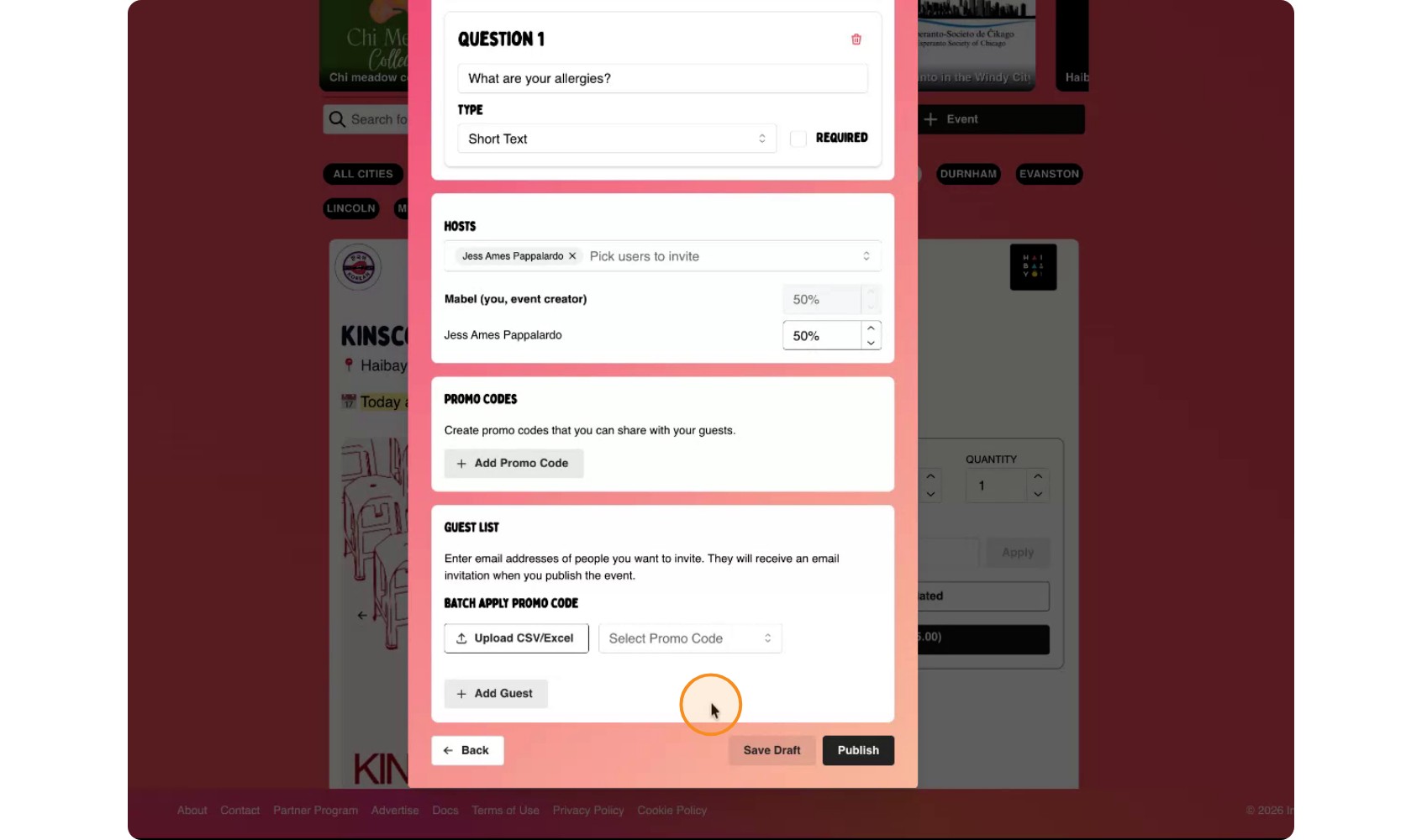
When everything is set, click 'Publish' to make your event live.
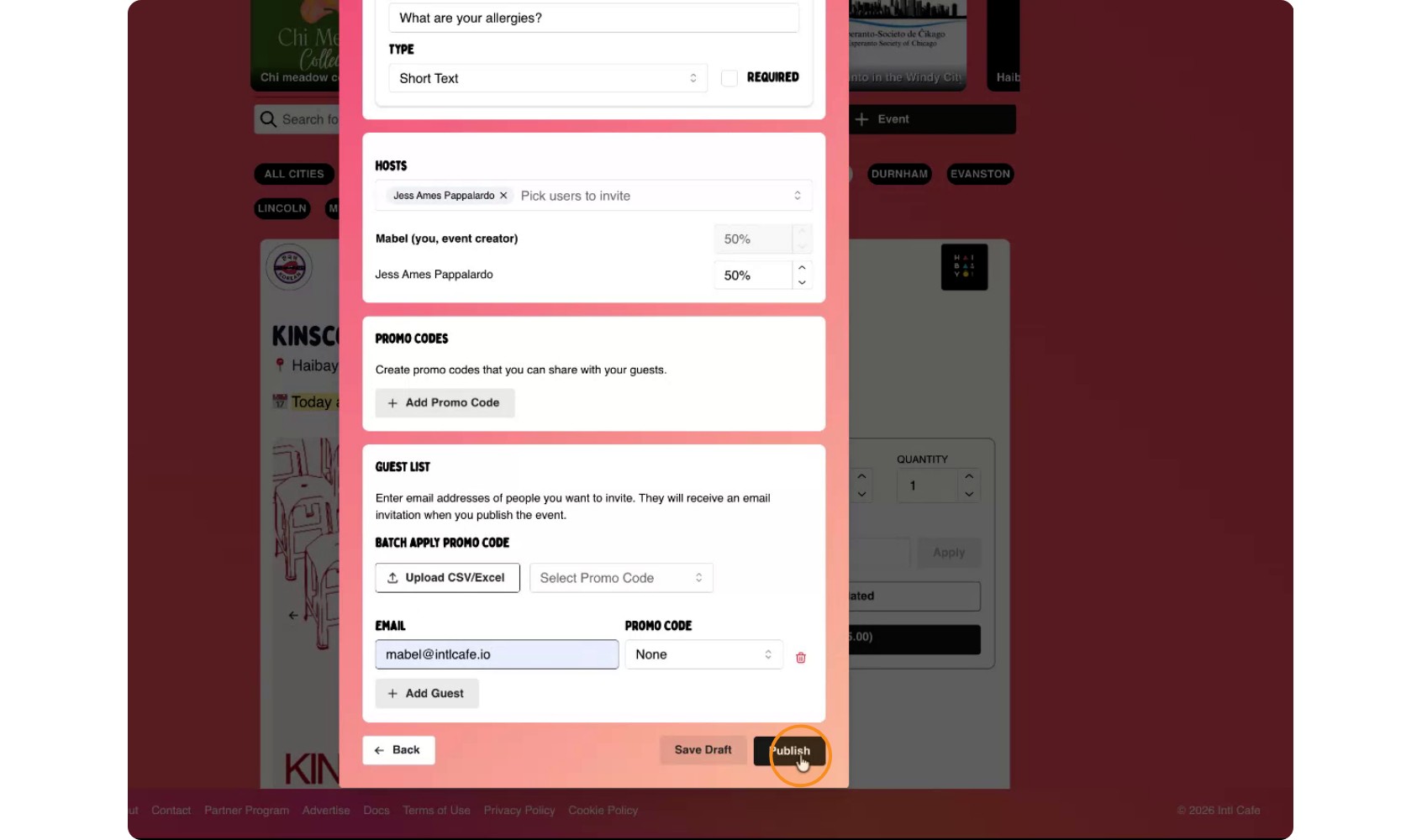
After publishing, your event will appear on your club page, ready for other users to get tickets and learn more about your event!