
No matches
Platform Guide
This document explains how to manage your venue page: customizing its appearance, sharing it to grow memberships, rewarding members with points and badges, posting events and building a community calendar, and using announcements, links, and photos to keep your audience informed.
Now that you have your venue page set up, open it to review the default layout and available sections.

Use the appearance and layout options on your venue page to modify how it looks, including updating banners and other visual elements.

You can change these edit banners and other design components as needed.


Open the venue details settings by clicking Edit Venue Details to update information such as address, description, and other key details about your location.

You can also change the theme of your venue page and then save or update your page to apply the new styling.


Share your venue page with your audience so they can discover and engage with your venue online.

You can share the page link directly with people you know or through your usual communication channels.

You can also generate a QR code for your venue page, print or display it at your physical location, and allow visitors to scan it to access the page.
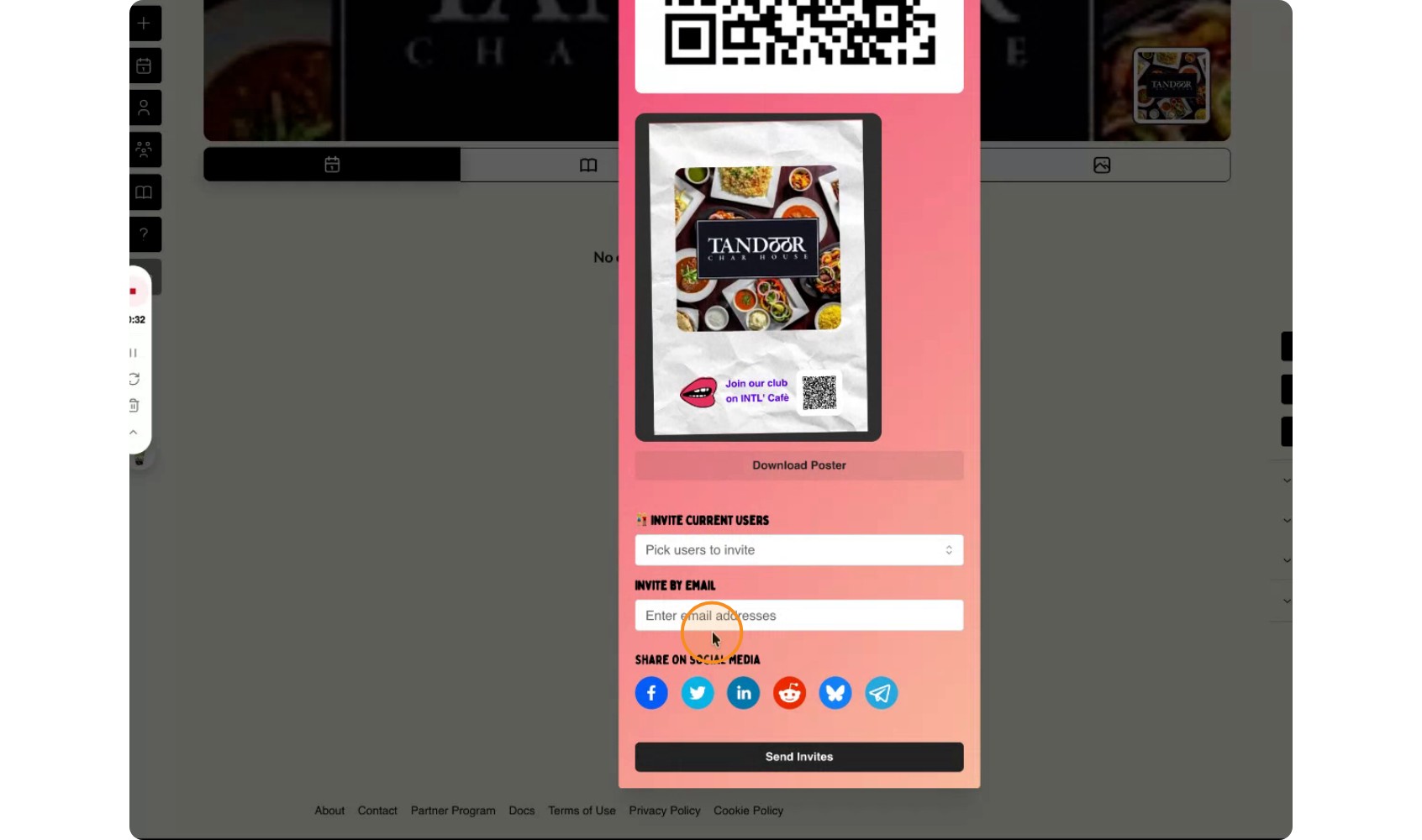

Encourage visitors to join your membership list through your venue page. The main reason to share and promote this page is to grow your members list, which you can then use for ongoing engagement.

As your membership list grows, you can use it to communicate with members and offer them special benefits.

With your members in place, you can send them emails, such as newsletters, directly to their inboxes.

Reward loyal members by giving them points for their engagement or visits.

To use points, ensure that your venue has the points feature enabled and configured.


You can also send members badges to recognize their loyalty or specific achievements. For example, you might have a “Loyal Patron” badge.

You can create new badges as needed to reflect different milestones or roles.

Once badges are created, you can assign those badges to other members of the group.


If a member consistently shows up or supports your venue, you can award them a badge as a special recognition.


After a badge is assigned, members will be able to see it in their passport or profile area.


They will see their badges displayed like this in their passport book or profile page.


This section shows all badges that have been issued to them.

Use your venue page to submit and post events so visitors can see what is happening at your location.

Posting events here supports two main goals: creating a centralized calendar for your venue and enabling a broader community calendar where not all events are hosted or driven directly by you. Other people or groups can post events taking place at your venue.
For example, another group may host an event at your location, and they can submit that event for your approval.


Their event details (such as time, date, and expected attendance) can appear in your event submissions area, where you can review them.

Once you have the necessary information, you can approve the event and add it directly to your calendar.


After approval, the event (for instance, “Chinese Club”) will appear on your calendar as part of your community events. If you go to your calendar, you will see it listed by name.

Use the calendar view to see all events scheduled at your venue for the month and beyond. This gives you a clear overview of everything happening at your location.

You can scroll or navigate through the calendar to review upcoming and past events.


You can also embed this calendar into your main website so visitors can view your events directly from your site.


If needed, you can remove or delete specific events from your calendar.


For now, you might delete a sample or test event to keep your calendar clean.


Use the additional content areas on your venue page to keep your audience informed and engaged. You can post announcements and articles to share news, updates, or longer-form content.

You can set up a link tree that highlights your most important links (such as reservations, menu, social media, or contact forms). You can also upload and display pictures to showcase your venue, events, or community.

